Slotly help center
Set up Slotly in a few minutes. Need a hand? Email support@centubo.com.
1. Install the app
- Open Slotly on the Shopify App Store and click Install.
- Approve the permissions. Slotly opens inside your Shopify admin.
2. Turn on the picker in your theme
- On Slotly's Home page, find the Delivery date picker card and click Turn on next to App embed.
- The theme editor opens with the Slotly embed switched on. Click Save.
- Go back to Slotly and click Check status. App embed shows On.
- Slotly checks your published theme. If you turned the embed on in a draft theme, it still shows Off.
3. Set your delivery schedule
- Open Schedule in the app menu.
- Under Picker, set Status to Active.
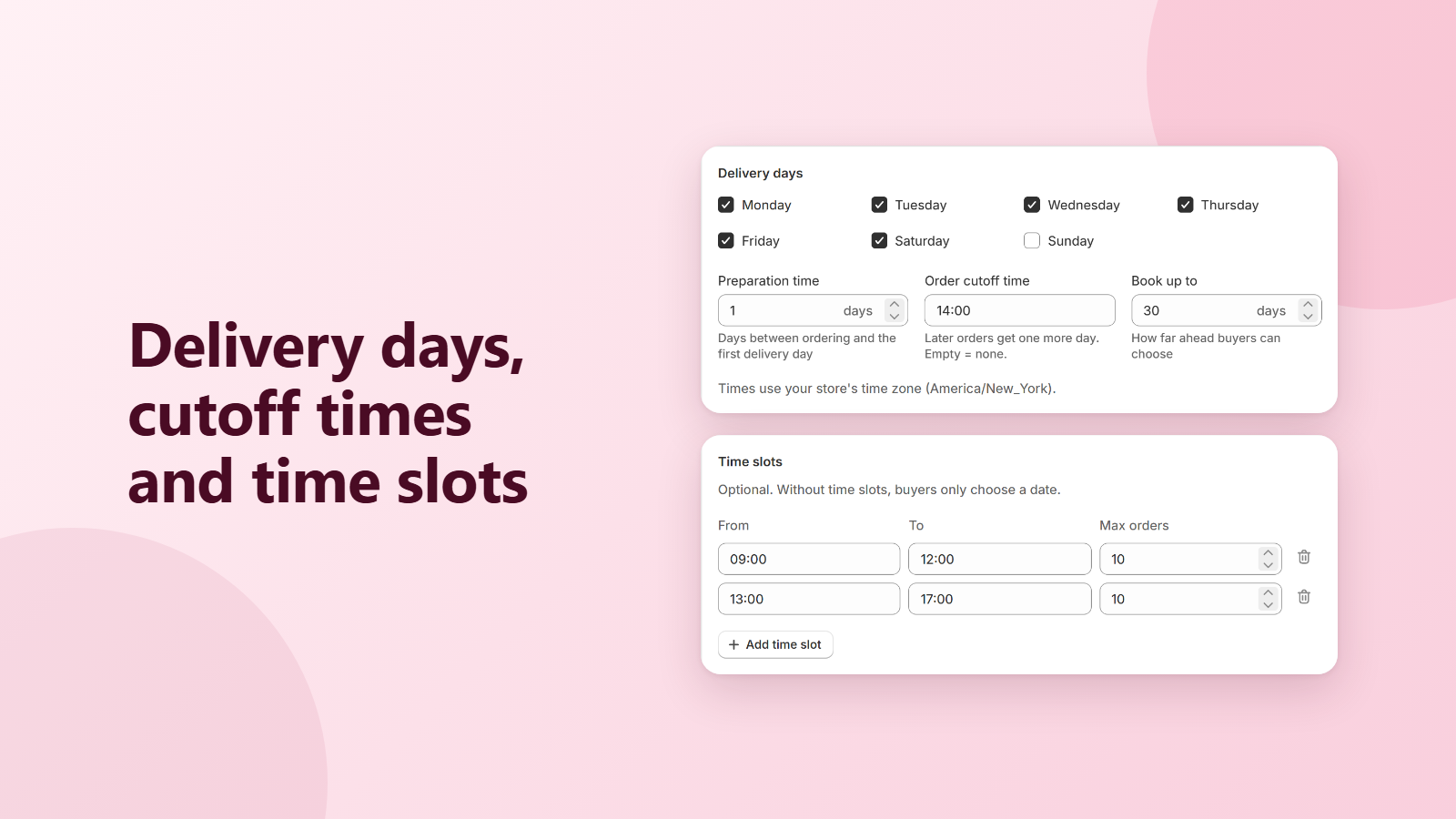
- Under Delivery days, tick the days you deliver and set Preparation time (days you need before the first delivery), Order cutoff time (orders from this time get one more day) and Book up to (how many days ahead buyers can choose).
- Check Earliest date right now in the Preview on the right, then click Save in the save bar.
- Times use your store's time zone. With Preparation time 1 and cutoff 14:00, an order on Monday at 10:00 can be delivered from Tuesday; at 15:00, from Wednesday.
- The Preview uses what you are editing; your store uses what you saved.
Time slots and order limits (optional)
- Under Time slots, click Use morning and afternoon, or Add time slot to add your own (up to 12).
- Set From and To for each slot, and Max orders if a slot can only take so many orders a day. Leave Max orders empty for no limit.
- Without time slots, buyers only pick a date. You can then set Max orders per day instead.
- Click Save.
- A full slot shows “(full)” in the picker and can't be picked. When every slot of a day is full, the day disappears.
- Cancelled orders give their place back. If two buyers check out at almost the same moment for the last place, a slot can go one or two orders over its limit.
Closed dates
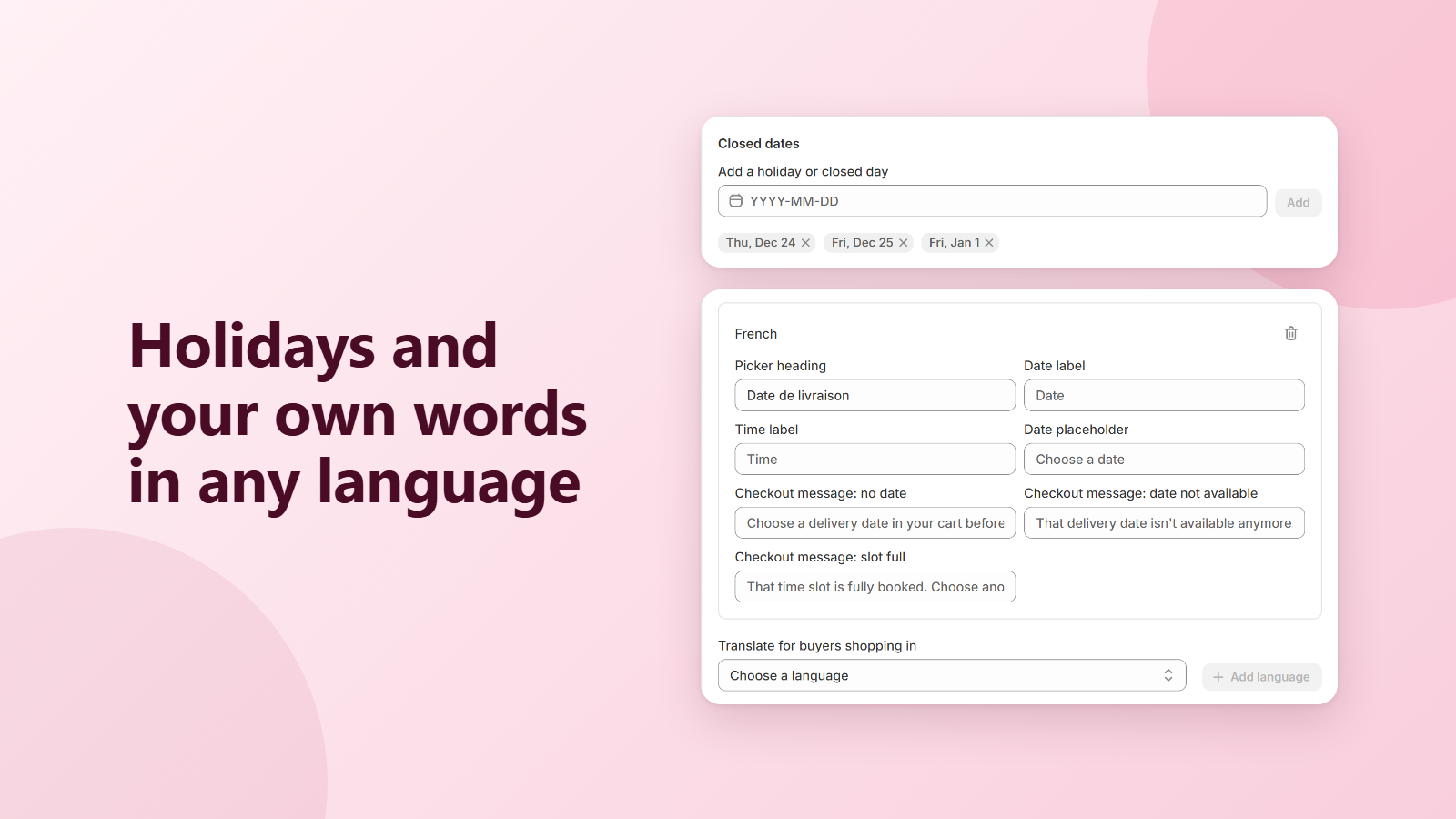
- Under Closed dates, choose a date in Add a holiday or closed day and click Add. Click × on a date to remove it.
- A closed date wins over every other rule: buyers can't pick it even on a day you deliver.
Require a date, or set it later
- Under Picker, tick Require a delivery date to stop checkout until the buyer picks a date. This also covers Buy it now and express checkouts like Shop Pay: checkout shows your message and the order can't be placed.
- Leave it unticked to accept orders without a date. They appear under Needs a delivery date on the Orders page, tagged delivery:none, so you can contact the buyer and click Set date.
- Either way, a date the buyer chose that you can no longer deliver (past the cutoff, closed, or a full slot) is stopped at checkout.
Change and translate the picker text
- Under Text, change the picker heading, the Date and Time labels, the placeholder and the three checkout messages. Leave a field empty to use the default.
- To translate, choose a language under Translate for buyers shopping in and click Add language. Buyers shopping in that language see your translation; empty fields use your default text.
Place the picker on the cart page (optional)
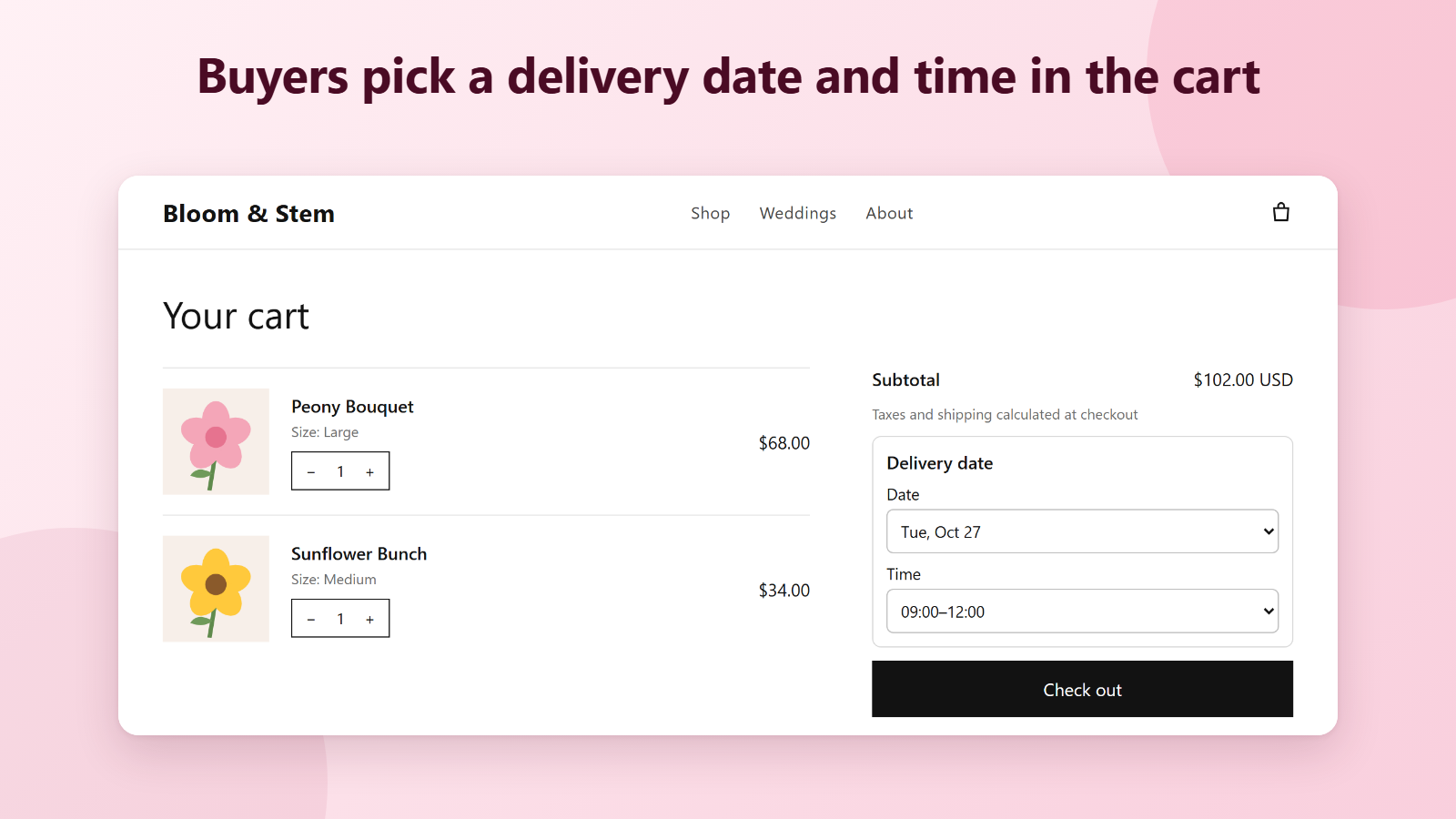
- By default the picker sits above the Check out button. Most stores don't need to change anything.
- To place it somewhere else on the cart page, click Add block to cart page under Picker on the Schedule page.
- The theme editor opens the cart page with the Slotly cart picker block added. Drag it where you want it and click Save.
- The block only marks the place: the app embed draws the picker, so keep it on.
- The picker shows when the cart has at least one item. In the theme editor, add a product to the cart to see it.
- Blocks can't be added to cart drawers. If the picker doesn't show in your drawer, email support@centubo.com and we'll place it for your theme.
4. See orders by delivery date
- Open Orders in the app menu.
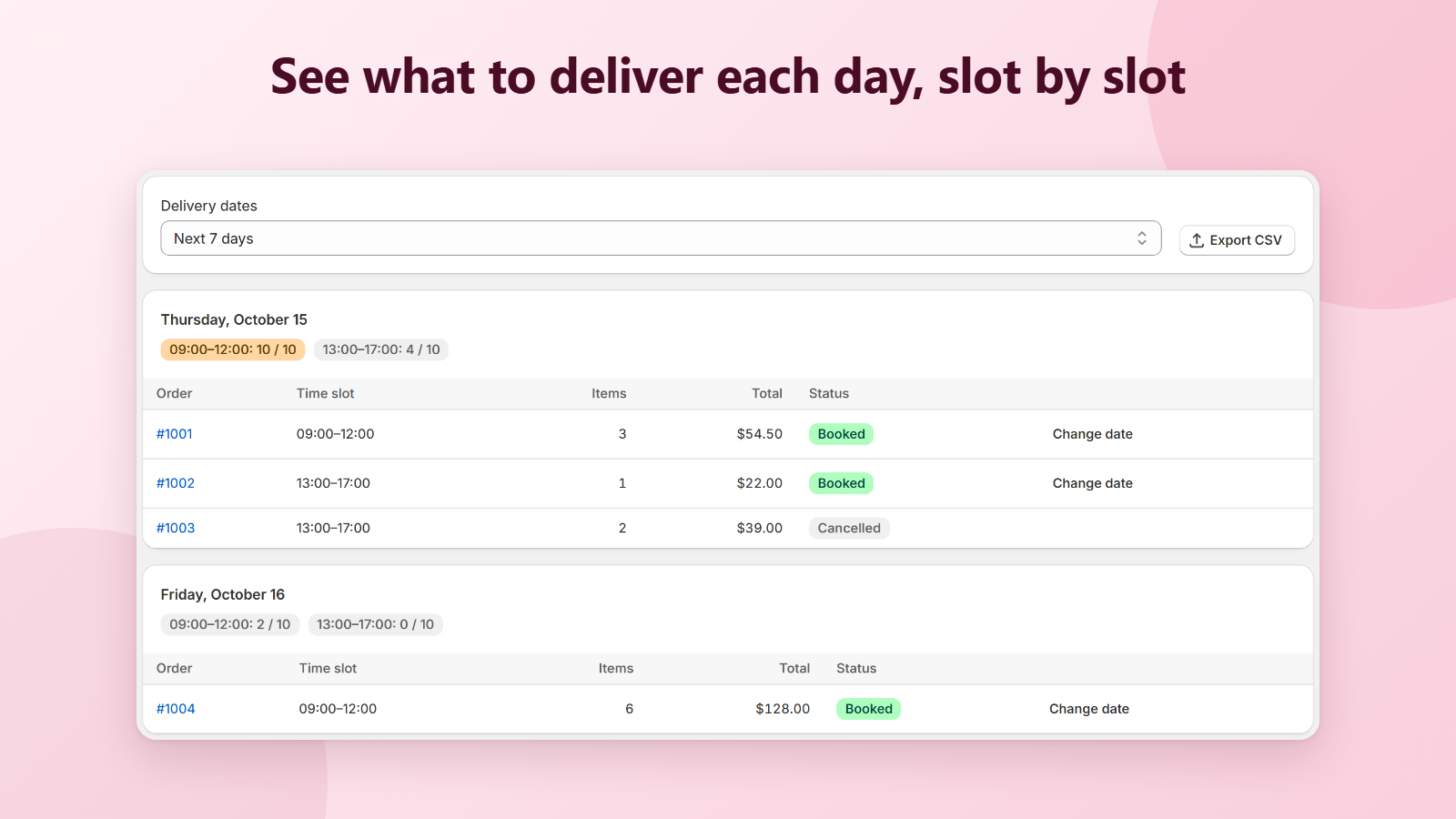
- Choose a range under Delivery dates: Today, Next 7 days, Next 30 days, Last 7 days or Last 30 days.
- Each delivery day lists its orders and shows how full each time slot is, for example 09:00–12:00: 8 / 10.
- Click Change date on an order to move it to another date or slot. Click Export CSV to download the orders shown.
- Slotly also tags each order delivery:YYYY-MM-DD, so you can filter orders by delivery date in Shopify admin.
- Buyers aren't notified when you set or change a date. Let them know yourself.
Set the date on an order without one
- On the Orders page, Needs a delivery date lists orders placed without a date.
- Click the order number to open it in Shopify admin and contact the buyer.
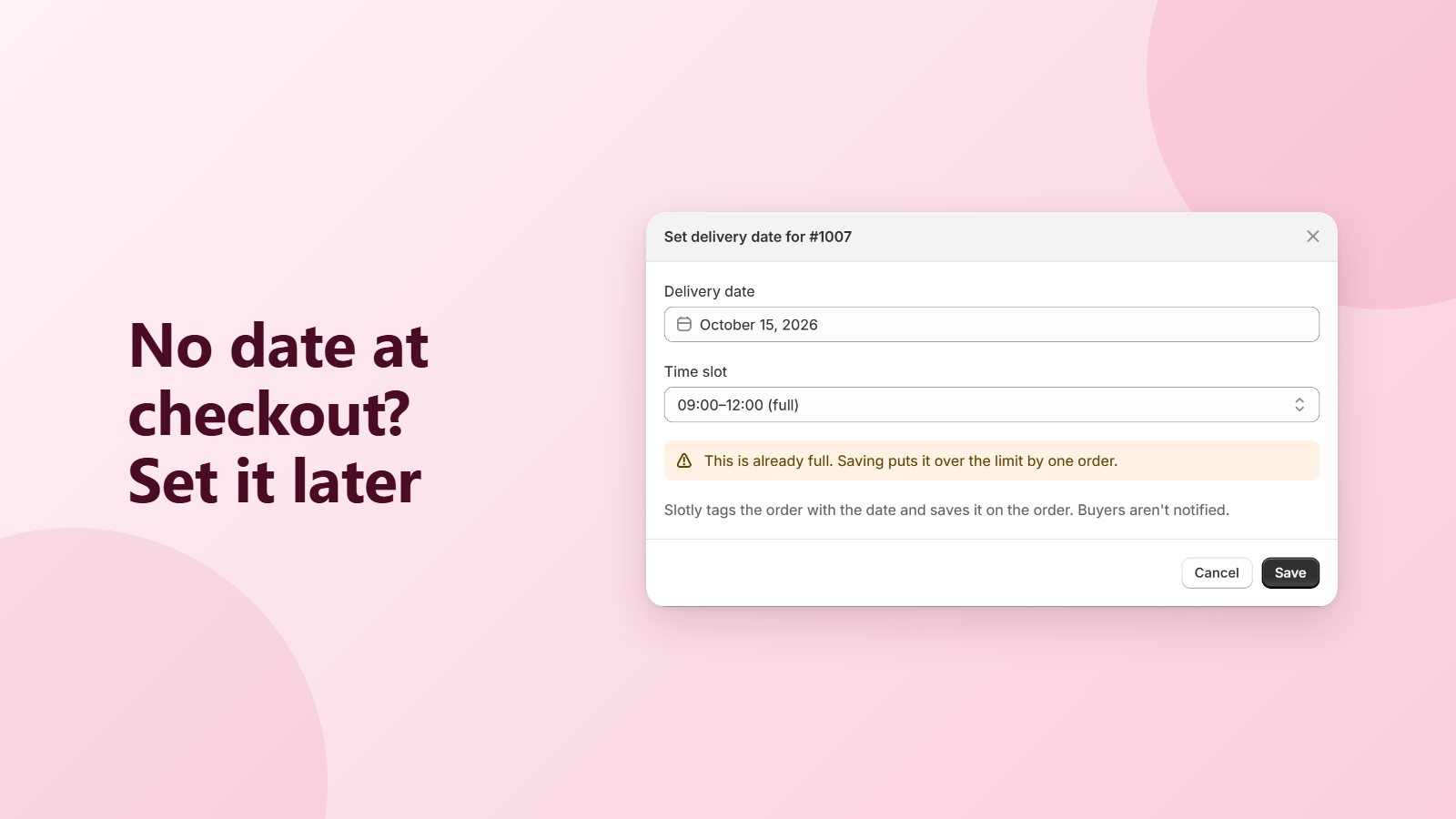
- Click Set date, choose the date and time slot, and click Save.
- The order moves to that day, gets the delivery tag, and shows Delivery Date and Time Slot under Additional details.
- You can choose a closed date, a past date or a full slot if you agreed it with the buyer. Slotly only shows a warning.
5. Try it on your store
- Add a product to the cart and open the cart page (and the cart drawer, if your theme has one). The picker lists only the dates you deliver.
- Pick a date and a time slot and place a test order, for example with Shopify's Bogus Gateway on a development store.
- Open the order in Shopify admin: Delivery Date and Time Slot are under Additional details, with the delivery: tag. The order is also on Slotly's Orders page.
- If you require a date, click Check out without one: the picker asks for a date. Try Buy it now: checkout asks the buyer to choose a date in the cart.
Show the date in order emails and hide Shopify's estimate
- Shopify's order confirmation email doesn't show the delivery date. On Slotly's Home page, click Copy code under Show the delivery date in order emails and paste it in Settings > Notifications > Order confirmation > Edit code. Email us if you'd like us to do it.
- Shopify can show its own delivery estimate on orders and at checkout, based on your shipping settings. It doesn't come from Slotly and can differ from the buyer's chosen date. The Home page links to Settings > Shipping and delivery, where you can turn it off.
Troubleshooting
- The picker doesn't show: check that the cart isn't empty, that you saved the schedule, that Status is Active and that App embed shows On on the Home page (published theme).
- The earliest date isn't what you expected: times use your store's time zone, and orders at or after the cutoff get one more day. The Preview shows your store's current time.
- A slot is still offered after it filled up: orders are counted a few seconds after they're placed. Reload the cart.
- A red banner says your schedule isn't updating on the store: open Schedule and click Save again. If it keeps failing, email us.
- Still stuck? Email support@centubo.com with your store URL and a screenshot.
FAQ
Does it work on my Shopify plan?
Yes. The picker is a theme app extension and the checkout check is a Shopify Function, which work on every Shopify plan. You don't need Shopify Plus.
Where does the picker show?
On the cart page and in the cart drawer, above the Check out button. It works out of the box on popular themes like Dawn. On the cart page you can place it yourself with the Slotly cart picker block. If it doesn't show in your cart drawer, email us and we'll place it for your theme.
Can buyers skip the date with Buy it now or Shop Pay?
If you require a date, no: checkout asks the buyer to choose a date in the cart first, for Buy it now and express checkouts too. If the date is optional, the order goes through and waits under Needs a delivery date on the Orders page.
Which time zone is used for the cutoff?
Your store's time zone from Shopify settings, not the buyer's. A 14:00 cutoff means 14:00 where your store is.
Where do I see the delivery date on an order?
Under Additional details on the order page (Delivery Date and Time Slot), as the tag delivery:YYYY-MM-DD, and on Slotly's Orders page. The Home page has a snippet to add the date to your order confirmation email.
Shopify shows a different delivery date on the order. Why?
Shopify can show its own delivery estimate, based on your shipping settings. It doesn't come from Slotly. The Home page shows how to turn it off; the buyer's chosen date is the one under Additional details.
Does Slotly slow down my store?
No. The picker is a small script that loads with your theme and reads your schedule from your store, and the checkout check runs inside Shopify.
What happens if I uninstall?
The picker disappears and checkout no longer checks the delivery date right away. Dates already on your orders stay there. Your Slotly data is deleted 48 hours after uninstall, as Shopify requires.
How do I get help?
Email support@centubo.com. We usually reply within one business day.